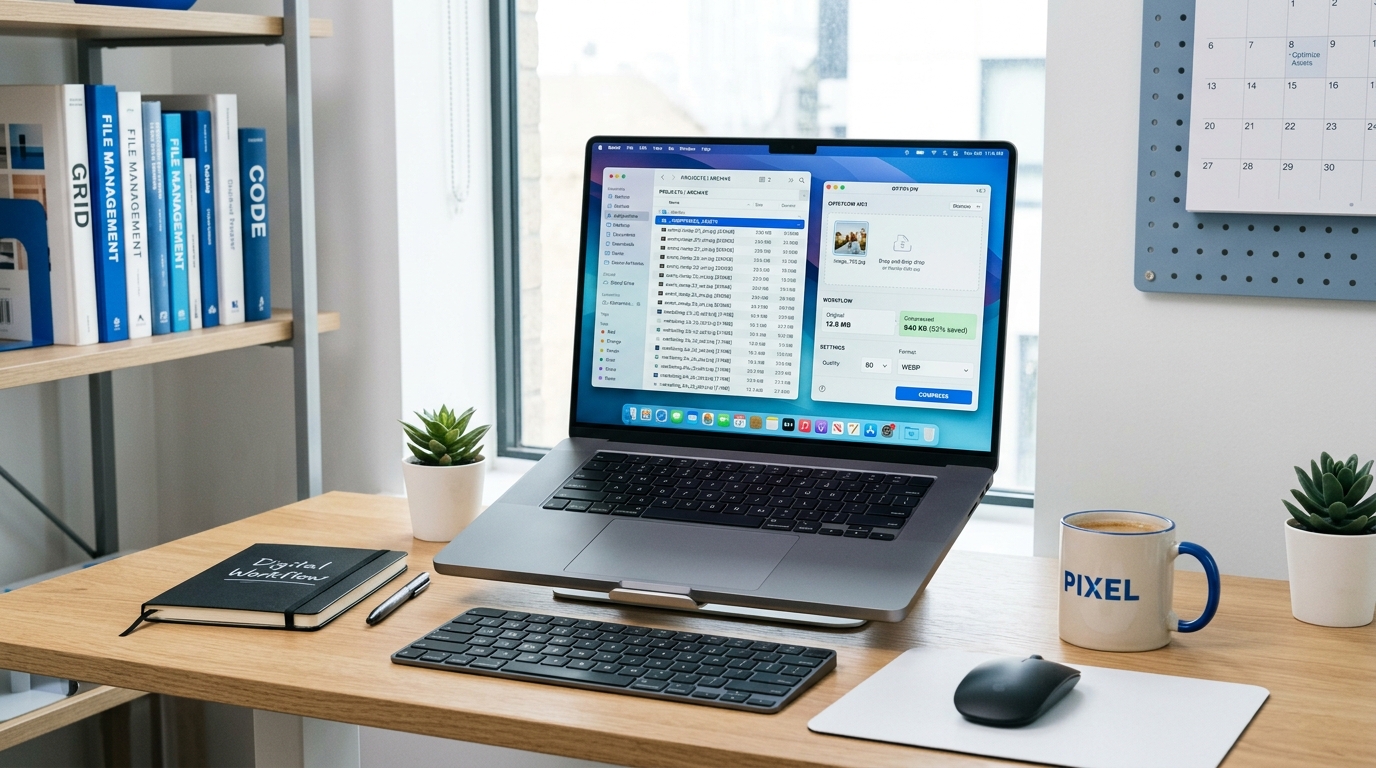
Whether you’re uploading a photo to a strict web form, speeding up a website, or just saving storage space — image compression is an essential skill. Here is how you can reduce image sizes effortlessly, directly in your browser.
The fastest way to compress an image is to use FileVit. Upload your image, pick a compression level, and download the smaller file instantly. No sign-up required.
Open Compress Image →The easiest way to compress an image
Instead of installing software, you can perform high-quality image compression directly in your browser using FileVit.
FileVit processes your images locally inside your browser tab. Your photos are never uploaded to our servers, keeping them completely private.
Step-by-step with FileVit
- Open the Compress Image tool.
- Click Select Image or drag and drop your photo.
- Choose your compression level — Standard gives the best balance of quality and size.
- Click Process and download your optimized image.
Compress an image to a specific size
Government portals, job applications, and university forms often require images under a strict limit — like exactly 50KB or 200KB. Guessing compression settings manually is slow and frustrating.
FileVit’s target-size tools automatically find the right compression to hit your exact target:
Pick your target from the list below and the tool does the compression work automatically — no manual settings needed.
Does image compression reduce quality?
Yes — standard JPG and WebP compression is “lossy,” meaning some pixel data is permanently discarded to reduce the file size.
However, modern compression algorithms are very smart. In most real-world cases, you can reduce a file by 50% to 70% before the human eye can detect any visible difference.
Reduce image dimensions
If compression alone isn’t enough, the next step is reducing the physical pixel resolution. A 4000×4000 pixel photo will always be large regardless of how much you compress it.
Use the Resize Image tool to scale it down by 50% or set a specific maximum width. This dramatically reduces file size while keeping it sharp on screen.
Frequently Asked Questions
Is FileVit free?
Yes. All FileVit image tools are completely free with no watermarks or hidden limits.
What formats can FileVit compress?
The compressor supports JPG, PNG, WebP, and HEIC (iPhone) files.
How much can I compress an image?
Most photographs can be reduced by 50–80% without visible quality loss. Graphics and text-heavy images compress less.
Will the compressed image look blurry?
Not at standard compression levels. Only very aggressive targets (like under 20KB) may introduce softness on complex images.